How to automate LinkedIn messages [+3 templates]

Updated on: September 30th, 2026
You’ve found someone on LinkedIn who looks like a great fit. You send a connection request, make a mental note to follow up, and get pulled into the next call. A few days later, you’re back in your inbox, trying to remember where you left off. Sound familiar? Luckily, that’s the part of LinkedIn outreach you can put on a schedule. When you automate LinkedIn messages, you can plan connection requests, personalized messages, and follow-ups in one sequence, instead of keeping every next step in your head.
Of course, you still need the right people and something worth saying. So, we’ll walk through the whole process: choosing a tool, finding leads, creating your campaign, and improving it based on the conversations you start. We’ll use Skylead along the way to demonstrate the power of a LinkedIn automation tool in action and share 3 message templates you can make your own. ?
What is LinkedIn message automation?
LinkedIn message automation is the use of software to send connection requests, messages, InMails, and follow-ups automatically according to predefined sequences, timing, and rules. Depending on the tool, it can include personalized message fields, conditional steps, and automatic pauses when a recipient replies. Some tools also offer AI reply handling, which uses the knowledge and instructions you provide to generate responses for your review or send them automatically.
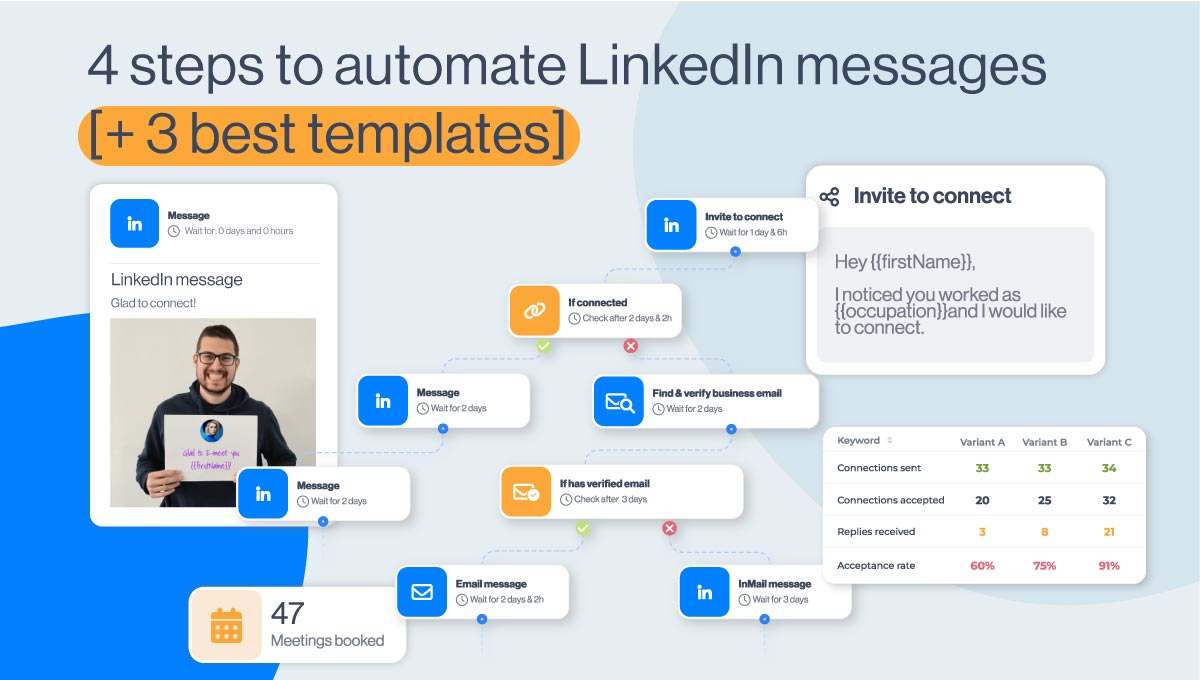
Skylead takes LinkedIn automation a step further, letting you define conditions that determine the next step in an automated outreach sequence. This means a lead who accepts your invitation can receive a different message from someone who hasn’t connected. That gives your outreach a clear structure while leaving room for a personal conversation.
| Message type | What it is |
| Connection request | An invitation to connect. Acceptance is required before the recipient becomes a first-degree connection. |
| Regular LinkedIn message | You can message first-degree connections, including people who accept your invitation. |
| InMail / Open Profile message* | Access depends on your subscription and the recipient’s settings. InMail credits vary by plan; eligible Open Profile members can be messaged for free. |
*See LinkedIn’s messaging guidance for eligibility details. Keep these differences in mind when deciding which steps belong in your sequence.
How to automate LinkedIn messages
Step 1: Choose the right tool to automate LinkedIn messages
Selecting the right LinkedIn automation tool starts with your actual workflow. If you only send a few individual messages, manual outreach may be enough. But if you manage repeatable cold outreach, compare the features you need with the cost of running that process.
Consider how the tool runs
LinkedIn automation tools come in different formats. Common ones include cloud-based tools, desktop applications, and browser extensions
For example, Skylead is cloud-based, meaning it stores all the information in the cloud and its campaigns do not depend on leaving your computer running.
Think about what happens around the sending, too: where you’ll find leads, how you’ll personalize messages, and who will handle replies. Those steps are part of the day-to-day work you’re choosing a tool for.
Compare price and features
Look beyond the number of messages a tool can send. Can you personalize the copy, build different paths for connected and unconnected leads, and see what happened at each step? If email outreach is part of your strategy, check whether it is included and how it fits into the workflow.
For example, one of the most important features for automating LinkedIn messages is Smart sequences. Smart sequences combine LinkedIn actions and emails with if/else conditions. This way, you can create a coherent outreach flow that the tool will follow and execute depending on your leads’ behavior.
At the same time, an email finder and verifier can support a relevant email branch. Image and GIF personalization is another option when a visual helps communicate your offer.
These are just our feature recommendations because we know and have tested their benefits. However, at the end of the day, you are the one who knows what your precise outreach needs and goals are. Just make sure you compare every tool's price-to-feature ratio, and make this one of your deciding factors.
Step 2: Find leads and prepare your lead source
Prospecting suitable leads is integral to your LinkedIn outreach and automation success. You can reach out all you like, but if your leads aren’t appropriate for your business, you won’t have much success.
To find suitable leads, you must first define your niche, Ideal Customer Profile, and Buyer Persona.
- ICP represents the list of characteristics of the company ideal for your business, such as industry, headcount, location, etc.
- Buyer Persona contains all the attributes of the decision-maker or product user within that company.
Turn those definitions into criteria you can search for: company location and size, job function, and the role a person plays in the buying decision. If you’re unsure where to start, use our guides and templates for an Ideal Customer Profile and a Buyer Persona.
Find leads in Skylead or start with a LinkedIn search
You don’t have to arrive with a finished prospecting list. Skylead’s B2B database lets you find contacts and companies, apply filters, review the results, and save them to lists without leaving the platform.

If company fit comes first, use account-based prospecting to build a focused company list, then identify matching contacts within those accounts. That helps you avoid collecting the right job titles at the wrong companies.
For example, if you sell onboarding support to software businesses, start with companies that match your market and company-size criteria. Then find the customer success or implementation leaders inside them. Save the companies and contacts to lists, and push the selected contacts directly into an outreach campaign when you’re ready.
Already working from LinkedIn or Sales Navigator? You can keep that approach, too.
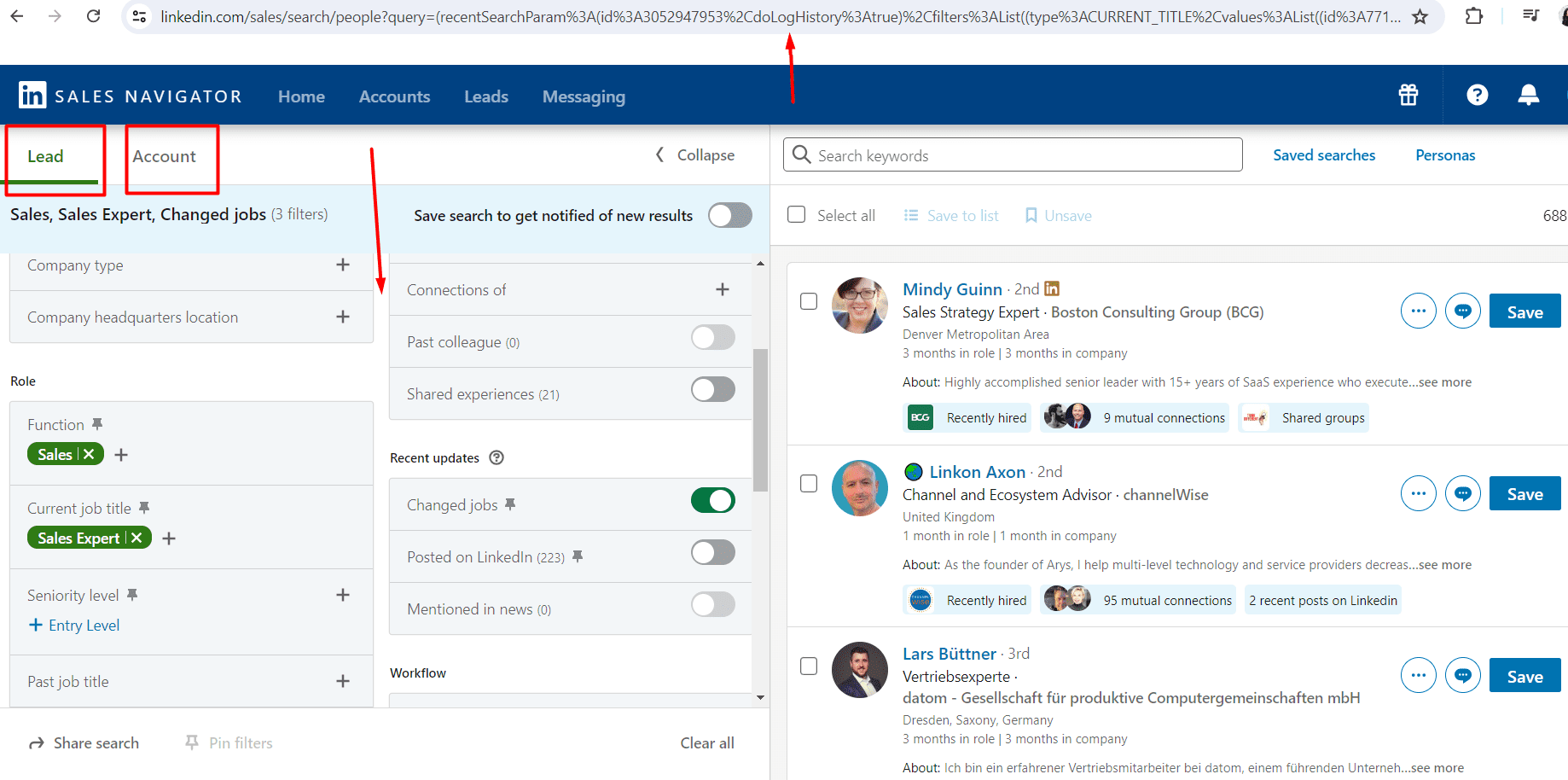
Once your ICP and Buyer Persona details are all written down, take it to LinkedIn search to find the target occupation. Choose People results and apply relevant filters, such as location and industry, to narrow the audience. Review the profiles before saving the search URL or preparing your list.

With Sales Navigator filters, you can also start with accounts that match your ICP, then identify relevant people within those companies. Alternatively, use Lead filters to search for your Buyer Persona directly.
Add the context you’ll use in your messages
A name and job title tell you who someone is. They don’t necessarily tell you why you should contact them today. This is where AI data enrichment fits: it helps you add relevant information to your contact and company lists before writing the sequence.
Skylead's AI data enrichment pulls data from 20+ providers and uses 10+ company signals to uncover relevant details. You can research details such as current roles, experience, company funding, open jobs, etc.
Use the findings as custom variables or to generate personalized icebreakers that you can push straight into your outreach campaigns. As a rule of thumb, keep only the fields that help you qualify leads or write better messages.
Step 3: How to automate LinkedIn messages with Skylead
To automate LinkedIn messages, register for the automation tool of your choice and connect your LinkedIn account to it. In this workflow, we'll use our LinkedIn automation tool and cold email software for agencies and sales teams - Skylead.
Once in the dashboard, navigate to the Create button.

Give your campaign a name that makes its audience and purpose easy to identify.

Then, choose your contact source (LinkedIn, Recruiter, or Sales Navigator Search URL, LinkedIn post, or CSV). If you've already saved your contacts and companies in a List in Skylead, skip this step for now.

Next, set and review the available campaign settings.

During the setup, you also get to decide whether to turn on AI SDR or handle replies yourself. AI SDR uses the knowledge and conversation guidance you provide to respond in a way that reflects your own approach.
AI SDR can work in:
- Automatic mode: AI sends replies automatically.
- Semi-automatic mode: you review each suggested response before it is sent.

Create your Smart sequence
Finally, it's time to create a Smart sequence. To do so, drag and drop the actions and conditions from the side menu and group them in a coherent flow.

Let's start by adding a connection request. Personalization is key when you automate LinkedIn messages. Use default variables such as first name, last name, occupation, and current company to make each message feel unique, or your custom variables, if applicable.
To make your messages even more personal to your target audience, mention common connections or specific reasons for reaching out. Here's an example of what that might look like.

Now, we want to check if the prospects have accepted our connection requests. To do this, we'll place the If connected condition.
If prospects accept our connection requests but do not reply, you can add your follow-up messages. Automated follow-ups ensure you stay on your leads' radar without manual effort. Space the time between them to avoid overwhelming your contacts. Start with a short sequence where each follow-up adds useful information, then adjust the number and timing based on your audience’s responses.

However, if the lead doesn’t reply, you can find their email and reach them via different channels. To achieve this, drop Find & verify and the If email verified step.
If Skylead finds an email, you can send one and a follow-up. However, if everything else fails, you can automate LinkedIn InMail as a last resort.

There is one other way to personalize messaging campaigns, and it’s image and GIF personalization. To do this, click the LinkedIn message, InMail, or email and hit the image icon.

Once you upload your media, customize it using variables and your and your leads' profile pictures, and insert it into the message.

Once done creating a sequence, launch your campaign. If you've skipped importing contacts, navigate to the Lists page and click on the desired list.

Select the contacts you wish to push to the campaign and click Push to campaign to import them to the one you just created.

Step 4: Monitor and optimize your messaging campaigns
Once your campaign is running, check the results as well as the sending activity. Focus on whether the right people are connecting and starting useful conversations.
Use Skylead’s reporting to review campaign activity and metrics, including:
- Profile views and follows
- Connections sent, connections accepted, and acceptance rate
- Messages sent, inMails sent, emails sent, replies received, and response rate
- Emails opened, emails clicked, email open rate, email click rate, emails verified, and bounce rate

If, for example, people accept invitations but do not reply, examine the opening message. If replies consistently come from poor-fit prospects, revisit the list.
One of the best tips we can give to the sales team or everyone is to experiment with different strategies, lead sources, sequence steps, and timing. This way you can see what works best and what your focus should be.
Test one meaningful change at a time so you can interpret the result. Give recipients time to respond, and avoid declaring a winner from a handful of early replies.
3 automated LinkedIn message templates
Here are 3 starting points for connection requests, InMail, and messages after connecting. Feel free to adapt the names and context to your recipient. The results below represent results we personally received across our campaigns at Skylead.
1. LinkedIn connection request
Message template:
Hi {{firstName}},
I hope we can connect and see if there is potential for a mutual collaboration ?
If not, I’d be happy to add you to my network.
Results:
- 49% acceptance rate
- 39% response rate
2. InMail template and example
Message template:
Subject line: {{whatyourProductDoes}} actually helps {{benefit}}, {{firstName}}! ?
InMail text:
Hi {{firstName}},
It would be silly of me to think you’re not using a {{yourProductOrServiceType}}, but it’s a no-brainer to present something new on the market that actually helps with {{whatYourProductOrServiceImproves}} specifically.
{{introAboutYourProductOrService&WhatSetsItApart}}
{{descriptionWhoIsYourProductOrServiceFor&Benefits}}
Let me know if this sounds interesting to you.
Anyways, our Marketing team wrote a great blog on the topic of {{yourProductOrServiceType}}. I hope it helps: LINK
Best,
Results:
- 20% response rate
Real-life example:
Subject line: SEO Tools actually help boost your rankings, Alex! ?
InMail text:
Hi Alex,
It would be silly of me to think you’re not using an SEO tool, but it’s a no-brainer to present something new on the market that actually helps improve search engine rankings specifically.
SEO Genius is an advanced SEO tool designed to provide unbiased reviews and comprehensive insights. What sets it apart is its ability to integrate AI-driven analysis for more accurate keyword research and competitive analysis.
Our tool is perfect for marketers, content creators, and businesses looking to enhance their online presence. It offers benefits like increased website traffic, higher search rankings, and actionable insights to optimize your content strategy.
Let me know if this sounds interesting to you.
Anyways, our Marketing team wrote a great blog on the topic of SEO tools. I hope it helps: LINK
Best,
3. LinkedIn message after connecting
Message template:
Hi {{firstName}},
Thanks for connecting! ? I hope we will have a chance to chat, since I’d like to discuss {{yourProduct’sAreaOfExpertise}} if that’s okay with you.
Results:
- 11% response rate
Real-life example:
Hi Emanuel,
Thanks for connecting! ? and I hope we will have a chance to chat, since I’d like to discuss multi-channel outreach and outbound sales, if that’s okay with you.
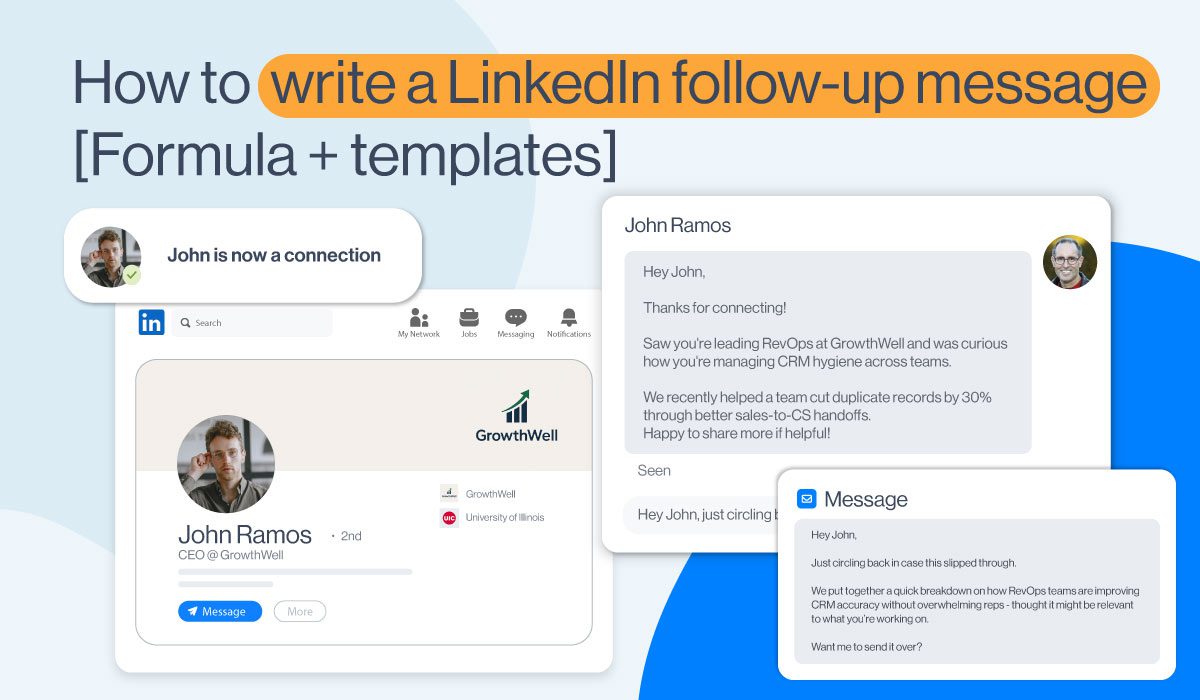
If the person stays silent, make the follow-up useful rather than repeating the opening. Offer a specific resource or add relevant context. See our LinkedIn follow-up message guide to learn how to write these, or check out this blog where we covered how to write a follow-up email after no response if you're combining both channels in a sequence.
Best practices to automate LinkedIn messages
Respond promptly
A reply is where the conversation gets interesting. Whether you answer yourself or use AI SDR, respond to the person’s actual question rather than carrying on with the next pitch.
That said, salespeople can engage with leads by visiting our Smart inbox, which gathers all LinkedIn and email messages in one place. This way, you don’t have to navigate between different platforms.
Agree on who owns each conversation and record requests to stop. If you use AI SDR, review conversations and refine its guidance when answers miss context or sound unlike your team. An interested reply should move toward a useful next step.
A/B test your LinkedIn messages
You can test out your LinkedIn messages, personalized images, calls to action, and InMail and email subject lines.
Choose one variable, such as the opening question or CTA, and keep the audience comparable. Review both the reply rate and the quality of the conversations. Keep in mind, though, that more replies are not necessarily better if they are mostly negative or irrelevant.
Skylead lets you test up to 5 message variants. You can also review the performance of each variant side-by-side on the Reports page.
Keep your CRM and outreach process aligned
Record meaningful outcomes in your CRM: relevant interest, next steps, qualified meetings, etc. If using Skylead, you can automatically sync it with HubSpot, Salesforce, and Pipedrive in just 3 simple steps. Or, integrate any other CRM with Skylead via Webhooks or API.
Also, when selecting a CRM for LinkedIn automation, it's essential to choose one that aligns with your business needs and offers robust integration features. This ensures that you're not just investing in a system but in a solution that will help your business thrive.
Ready to automate your LinkedIn messages?
Automating your LinkedIn messages carries many benefits and can transform your outreach efforts. That said:
- By choosing the right tool like Skylead,
- Prospecting high-quality leads,
- Creating an effective campaign,
- And continuously monitoring and optimizing your strategy,
you can save time and connect more effectively with your target audience.
Automation allows you to maintain consistency in your messaging and ensures you reach a larger target audience.
Moreover, you can build stronger relationships and generate more opportunities with the right approach.
So, are you ready to automate your LinkedIn messages? If so, register for our 7-day free trial, and our customer support will be there to guide you each step of the way. ?